How to Create a Drop Shadow in Photoshop Step-by-Step Guide for Beginners

Adding a drop shadow in Photoshop is one of the easiest ways to give your design depth, dimension, and a professional look. Whether you’re designing a logo, a social media post, or an e-commerce product image, a well-placed shadow can make your elements pop right off the screen.
In this blog post, I will show you how to create a drop shadow in Photoshop, even if you’re just getting started with the software.
What is a Drop Shadow?
A drop shadow service is a process of visual effects that refers to adding a shadow behind the object of an image to create the illusion. It increases the background. This effect is usually used to improve depth and visual separation in designs for texts, logos, and buttons.
Why is drop shadow important in Photoshop?
Drop shadows are crucially important because they improve the depth and realism of images. They make the objects appear three-dimensional and stand out from the background. Drop shadows also allow you to add visual interest, make text more readable, and help simulate lighting and perspective in 2D designs.
How to Create a Drop Shadow in Photoshop
It assists in making the illusion of an object that allows it to hover above the background or cast a shadow, adding depth and realism to the image. With this strategy, you can make objects appear more three-dimensional, even in 2D designs. Besides, it helps to create text or logos and other elements easier to read by adding a shadow behind them. By doing this task, you can easily make them stand out from the background. It is especially useful for text with light colors or on a busy background. Moreover, you can add a subtitle with 3D effects to your images and make them more attractive and eye-catching.
Here are some of the steps on how to create a drop shadow in Photoshop, which helps to create a shadow as a beginner. Read our blog carefully and follow all these steps, and hopefully you will get a complete of how to add shadow in Photoshop.
Method 1. Select it.
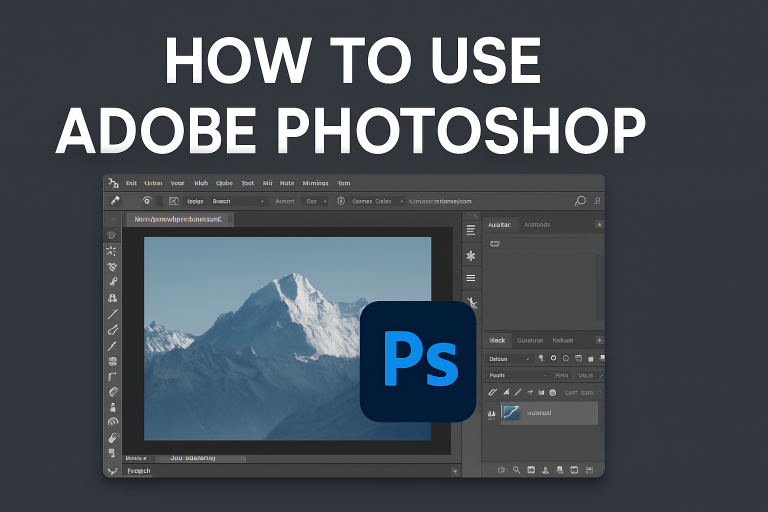
Open your image in Adobe Photoshop and locate the Layers panel (usually on the right side of the screen). Click to select the layer that contains the image or object you want to apply a drop shadow to.
Tip: If the Layers panel isn’t visible, you can enable it by going to Window > Layers or pressing F7 on your keyboard.
Method 2. Foreground it:
With the correct layer selected, go to the bottom of the Layers panel and click the “FX” (Effects) icon. A menu will appear; from there, choose “Drop Shadow.”
This will open the Layer Style dialog box, where you can customize your drop shadow settings.
Method 3. Customize it:
In the Drop Shadow settings window, you’ll see options to fine-tune the shadow’s appearance under Structure and Quality:
- Blend Mode: Choose how the shadow blends with other layers (usually set to “Multiply”).
- Opacity: Controls how transparent or dark the shadow appears.
- Angle: Determines the direction the shadow falls. You can also use the clock-like dial.
- Distance: Sets how far the shadow is cast from the object.
- Spread: Adjusts how wide the shadow grows.
- Size: Controls how soft or sharp the edges of the shadow appear.
- Noise (under Quality): Adds grain to the shadow if you want a textured look.
Tip: You can check the Preview box to see live updates as you adjust the settings.
Method 4. Apply it:
Once you’re happy with the look of your shadow, click “OK” to apply the changes. The drop shadow will now appear beneath your object in the layer, adding depth and a more polished look.
Conclusion:
Adding a drop shadow in Photoshop is a way to add depth and visual impact to your images. With just a few clicks, you can enhance your design by modifying existing elements and creating more dynamic ones. If you want to work on web, print, or social media graphics, mastering this effect will help elevate your creative projects with a polished, professional touch.